
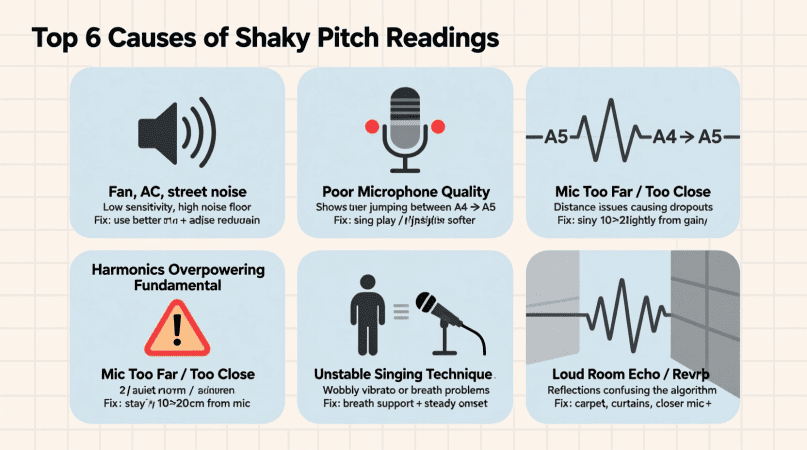
You open your pitch detector, sing or play a note, and suddenly the reading flickers between pitches. It feels unstable, almost like the tuner can’t decide what you’re playing. Don’t worry—this is a common issue, and it doesn’t mean your device is broken. It usually comes down to how sound works and how pitch detection algorithms interpret it.
Common Reasons Pitch Detectors Look Unstable
1. Harmonics Confusing the Algorithm
Every real sound contains not just one frequency but a fundamental frequency plus multiple harmonics (overtones). Sometimes, the harmonics are louder than the fundamental. When that happens, the detector may lock onto the harmonic instead, causing it to jump between notes or octaves.
2. Noise and Signal Quality
Background sounds, breath noise, string buzz, or even room reverb can interfere with the reading. Pitch detectors rely on clean input. If the signal is messy, the results will flicker.
3. Vibrato and Pitch Slides
If you’re singing with vibrato or playing with bends, the pitch naturally wavers. The detector is just showing what you’re doing—it’s not always an error. But wide vibrato or fast slides make the readout appear unstable.
4. Algorithm Trade-Offs
Different pitch detection methods—FFT, autocorrelation, YIN—balance speed and accuracy differently.
- FFT reacts fast but can jump around.
- Autocorrelation is steadier but slower.
- YIN is often the most stable but more complex.
Your detector might flicker because of the algorithm it uses.
5. Latency and Buffer Settings
If the software is using too small a buffer, it reacts too quickly and jitters. Too large a buffer, and it feels sluggish. The wrong balance creates instability in real time.
To experiment with sound variations, try using this onlinepitchchanger directly in your browser.
How to Get More Stable Pitch Readings
- Use a clean tone: Minimize noise and play or sing with steady energy.
- Reduce strong harmonics: Pluck or bow closer to the center of the string; sing with a pure vowel.
- Control vibrato during practice: Straight tones give clearer feedback.
- Try a better tool: Our audio pitch detector (wav/m4a) shows both the note and frequency spectrum, so you can see harmonics alongside the fundamental.
- Train with voice-friendly software: The Free pitch detector smooths out fluctuations, helping you focus on accuracy instead of jitter.
Quick Comparison of Pitch Detection Methods
| Method | Speed | Stability | Best Use Case |
|---|---|---|---|
| FFT | Fast | Less | Instrument tuners |
| Autocorrelation | Medium | Medium | General pitch detection |
| YIN | Medium | High | Singing and real-time use |
FAQs
Q: Why does my tuner jump between notes?
Because it’s detecting harmonics along with the fundamental.
Q: Does vibrato cause unstable readings?
Yes. Wide vibrato or fast pitch slides make detectors flicker, since the pitch is always changing.
Q: How can I stabilize my pitch detector?
Use a clean tone, minimize background noise, and try tools designed for real-time clarity.
Q: Do better algorithms fix this?
They help. YIN and hybrid detectors are more stable than FFT alone.
Fluctuating results often come from algorithm limits explained in autocorrelation versus YIN.
Understanding background effects starts with a look at noise and interference.
Hardware problems become clearer after reviewing microphone quality impact.
Signal confusion is easier to diagnose when you learn why tuners show multiple notes.
Improving stability is possible once you understand how FFT works.
Live tests are more reliable when you switch to a real-time browser detector.
Troubleshooting step by step is easier with the pitch detector guide.
Ornella is a music technology writer and vocal tools specialist at Pitch Detector. She creates practical content around pitch detection, note recognition, vocal analysis, and singing education tools for beginners, singers, and audio creators.